Email and push alerts, who gets what
See every channel Cara uses to tell you about a new lead, and turn the per-call email summary on or off.
Last checked against the product on
A call ends, Cara has already captured the name, the number, and the job — and a minute or two later you find out about it four different ways at once. Here is what each one actually is, and the one you can turn off.
How it works
- The website. Every call shows up in your dashboard a minute or two after it ends, as soon as Cara's notes land, and the bell at the top of the website shows an unread count with the recent feed. This channel is always on.
- Push alerts. The ClearLine365 mobile app sends a push notification for the same event. It follows your phone's own notification permission — there is no separate in-app switch, so if push is off, it is off at the operating-system level.
- Email. An email summary of the call goes to the account owner's email address. This one has a switch, covered below.
- Text to your own cell. Texting the owner's own mobile number is on from day one, because you gave that consent when you entered your mobile number during setup. It is a separate switch from email and push, and it is covered in its own place in Settings → Notifications, not here.
Turn email alerts on or off
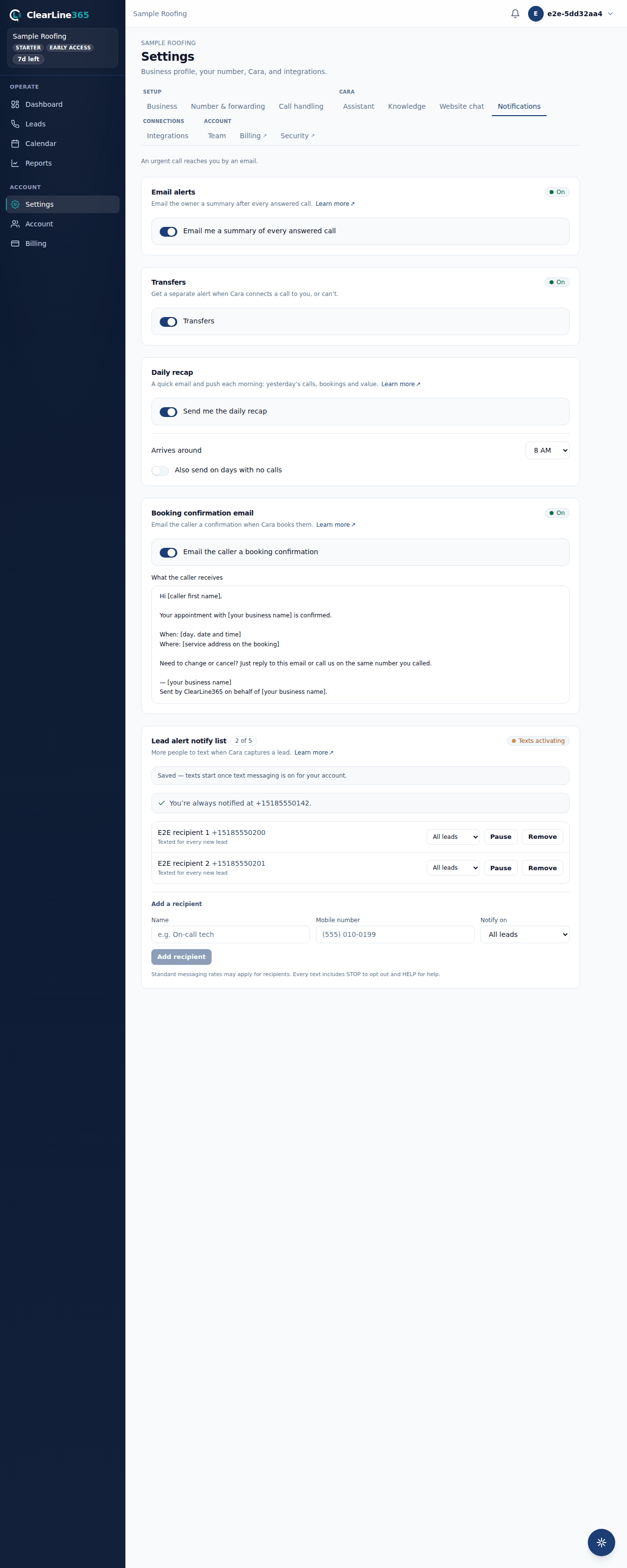
- On the website, go to Settings → Notifications. In the app, go to Settings → Alerts.
- Find the Email alerts card or row.
- Use the switch to turn Email me a summary of every answered call on or off.
Only an owner can change this. Anyone else on the team sees the control, read-only — on the app, a tech or teammate sees only the Push alerts row in this section.
What to expect
With email alerts on, you get one email per answered call, with the caller, the reason for the call, and any lead details Cara captured. It arrives to the account owner's email address.
Turning it off stops only that per-call email. Your weekly reports, website notifications, and push alerts keep firing exactly as before, and it does not touch the separate text-to-owner opt-in.
Limits
Email alerts go to the account owner's email address only — there is no separate email list the way there is a text notify list. Push depends entirely on your phone's notification permission: if you denied it, or later turned it off in your phone's settings, ClearLine365 has no separate switch to override that. On mobile, tapping the Push alerts row in Settings → Alerts takes you straight to your phone's system settings so you can check or change it.
Common questions
Why don't I see an email switch for my teammates?
Because there isn't one. The per-call email goes to the account owner. Everyone else finds out through the website and push alerts, and through the notify list if the owner added their number to it.
I turned email off. Will I still know about urgent calls?
Yes. Your website and push alerts keep working regardless of the email switch, and both land a minute or two after the call ends, with urgent calls flagged urgent.