Update your card
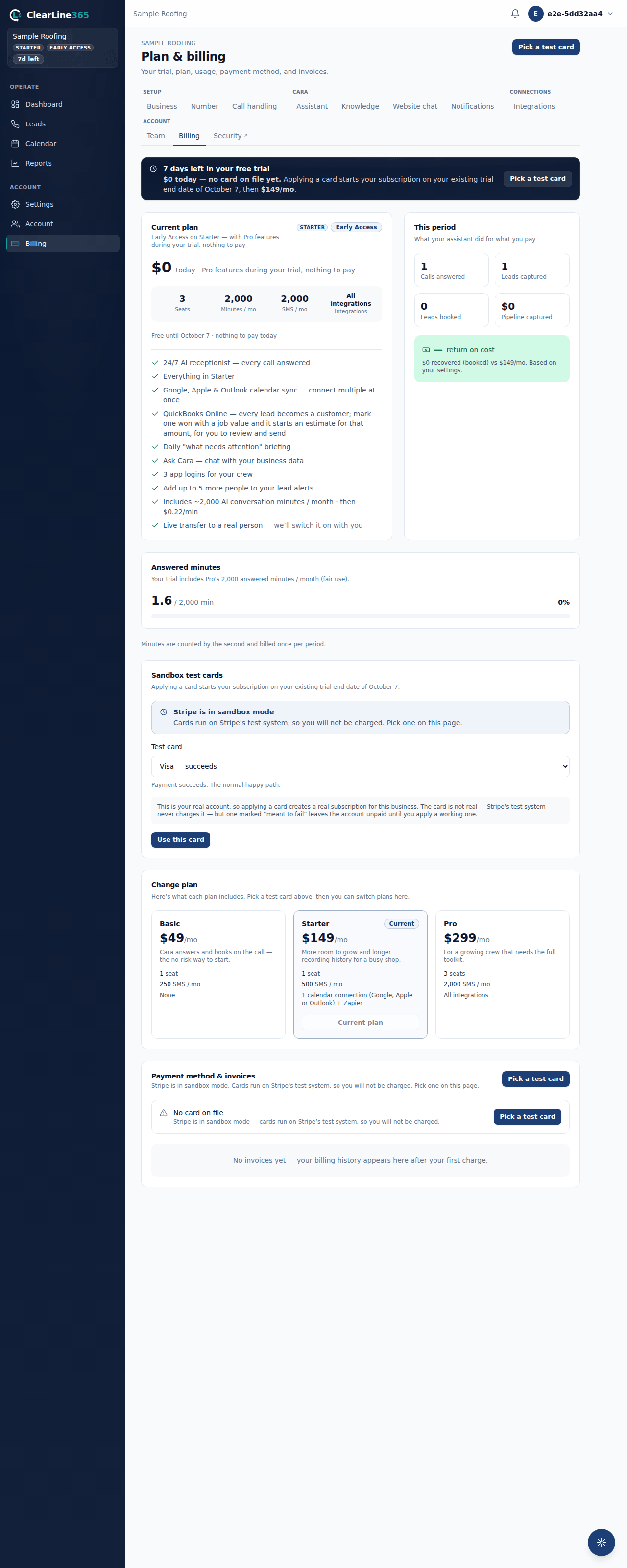
Change the card ClearLine365 bills from Billing — a secure card form opens right on the page, handled by Stripe.
Last checked against the product on
A card that's about to expire doesn't warn you — it just declines the next charge. Update it before that happens, right from Billing.
Update your card
Stripe is in sandbox mode. Cards run on Stripe's test system, so nothing is charged, and the buttons below are replaced by a Sandbox test cards panel on the Billing page. Pick a card there to add one. The steps below are how it works once real card payments are on.
- Sign in at clearline365.com and go to Billing in the left nav.
- Choose Update card, next to the card on file, or Manage payment method near the top of the page — both open the same form.
- A card form opens right on the page. It's Stripe's own secure field, so your card number never touches our servers. Enter the new card, then choose Save card.
- The page refreshes with the new card showing.
On mobile, open Settings, then choose Billing & invoices under Plan & billing. This opens your ClearLine365 billing page in your phone's browser, where the same card form works — card changes happen there, not inside the app itself.
What to expect
The card form opens without leaving the page, and closes on its own once the card is saved — no redirect, no second tab. The card you save is what's charged for your next invoice and for any overage.
Limits
- Only an owner can update the card on file.
- ClearLine365 never stores or sees your card number — Stripe's own secure field handles it directly, whether that's the form on this page or, if it can't load, Stripe's own hosted page instead.
Common questions
Does this open a different site?
No — the card form opens right on this page. It's still Stripe handling the card number, inside its own secure field, so ClearLine365 never touches it directly; you just never leave the site.
The button is disabled — why?
If billing isn't connected to your account yet, the button stays disabled with an explanation rather than opening a broken flow. If billing is connected and the button still won't open, try again in a moment, then contact support if it keeps happening.