Use your calendar: add, change and cancel appointments
See your week, day or month, add an appointment you took yourself, move one to another time, and cancel one, all from the Calendar page.
Last checked against the product on
A customer texts to move Thursday's visit to Friday, or a neighbor asks for an estimate while you are loading the truck. Everything Cara books on a call lands on your calendar, and so does anything you add yourself, so it all lives in one place: the Calendar page.
How the calendar works
- Week is the view you open on: seven days, Monday first, with each day's appointments in time order. Day puts the hours of one day down the side. Month shows whole weeks, with the first two appointments of each day; press a day's number to open that day in Day.
- The arrows and Today move you around, and the line between them says which days you are looking at.
- Teal appointments are ones Cara booked on a call. White ones are ones you added by hand, or that another scheduling tool you connected synced in. Grey blocks are busy time from a calendar you connected: they are there for you to see, and you can't open one.
- Days your business is closed are shaded and say Closed. That comes from your hours and days off in Cara → Your business.
- Cancelled appointments are hidden. When the days on screen include any, Show cancelled appears, with how many.

Add an appointment
- Open Calendar and select New appointment, or the + at the bottom of a day.
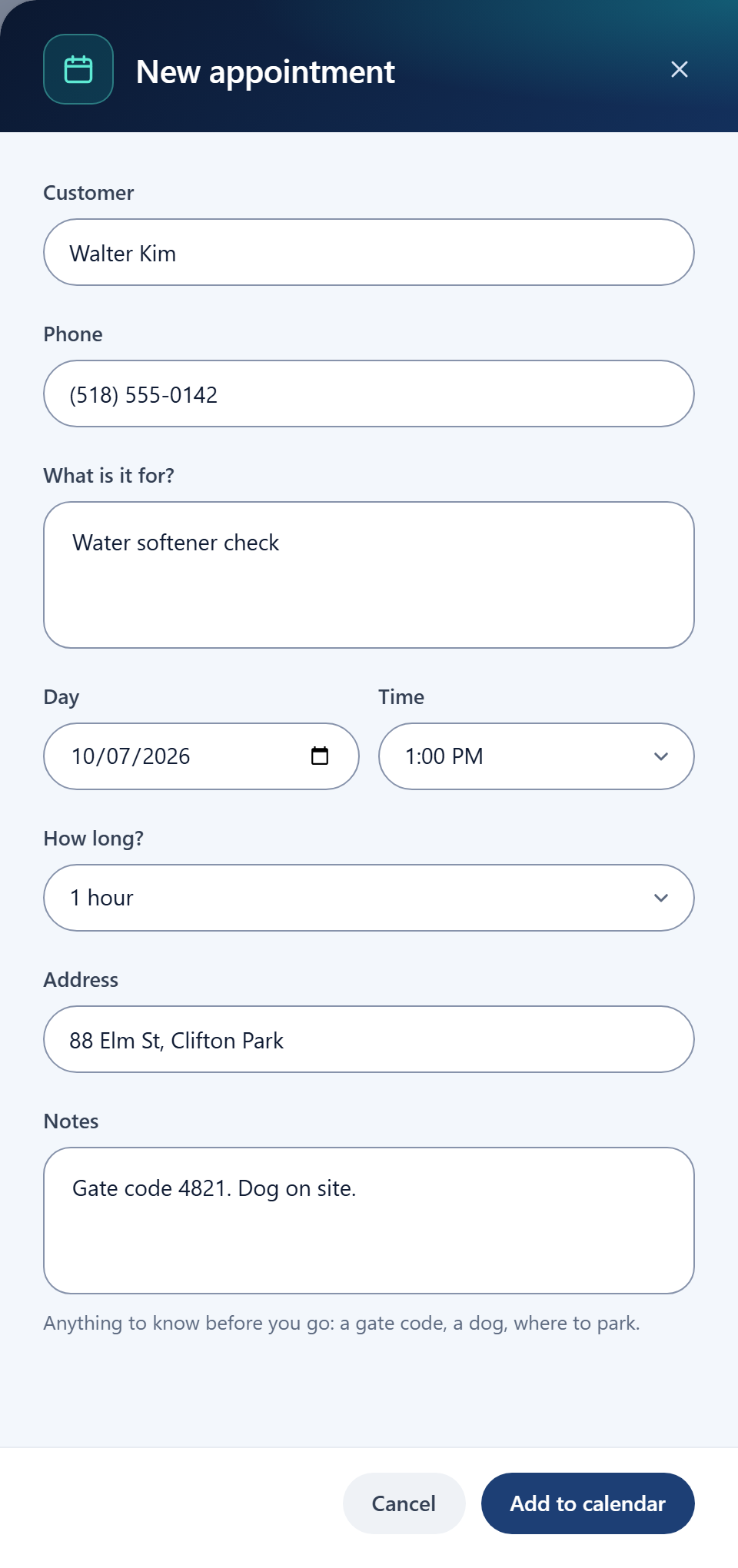
- Say who it is for and what it is for: Customer, Phone and What is it for?. Only What is it for? has to be filled in.
- Pick the Day, the Time and How long?. It opens on the day you were looking at (or today, if that day has passed), at 9:00 AM, for as long as your booking rules say a job takes (an hour until you change it).
- Add the Address and any Notes, such as a gate code, a dog, or where to park, then select Add to calendar.
If the time overlaps another appointment, or falls outside your hours, the shelf says so. It never stops you: whether to double-book, or to fit someone in on a Saturday, is your call.
Change an appointment
- Press the appointment on the calendar.
- To write a note, type in Notes and select Save changes.
- To change anything else, select Edit details, change what you need, and select Save changes. If you changed the day, the time or the length, that button reads Review the move, and it asks Move this appointment? first, with the old time struck through and the new one under it. Select Move it.
- Once an appointment has passed and nobody has said how it went, its block says Outcome?. Open it and select Mark completed or No show.
Cancel an appointment
- Press the appointment and select Cancel this appointment.
- Say why, if you like, and select Cancel appointment. Keep appointment takes you back.
What to expect
A new appointment is on your calendar at once, in white, and in the ClearLine365 app. If you have a calendar connected, the appointment goes onto it too. See Who decides availability for how the two fit together.
A cancelled appointment leaves the grid but stays on your calendar, marked cancelled: nothing is deleted. Tick Show cancelled to see it, open it, and select Restore to scheduled to bring it back. A calendar you have connected frees the time when you cancel.
Limits
- Owners and teammates can add, change and cancel appointments. If you can't, New appointment is greyed out, the calendar says "Only an owner or a teammate can change appointments.", and an appointment you open shows its details with no buttons to change it.
- There is no delete: cancelling keeps the appointment and its history.
- You can't drag an appointment to another time. Open it and use Edit details.
- The calendar loads appointments from three months back to a year ahead.
- An appointment holds who, what, when and where. It has no price on it: ClearLine365 tracks your calls and your booked jobs, not what a job is worth.
Common questions
Can I book on a day I'm closed?
Yes. The shelf tells you it is outside your hours, and you can still add the appointment. Cara follows your hours and days off when she books, but you don't have to.
How do I tell who booked an appointment?
By its colour: teal is Cara, white is you or a scheduling tool you connected. Open it and the line under its name says it in words: "Sam Ortiz · booked by Cara", "added by you", or "synced from" and the name of the tool it came from.
Why is part of my calendar grey?
Grey blocks are busy time from a calendar you connected. Cara won't book over them. They show only the time, never what the event is.