Sign up in four steps
Find your business, meet Cara, keep her, and confirm a few details — four steps, each with Back and Continue.
Last checked against the product on
Signing up starts with hearing Cara, not with a form. The whole thing is four steps — Find, Meet Cara, Keep her, Confirm — and every step shows the same two buttons in the same place: Back on the left, Continue on the right. Nothing is saved to your business until the third step, when you create your account.
How it works
- Find. Type your business name or paste your website. Cara starts reading right away.
- Meet Cara. Hear her greeting and her answer to a caller's question, in her own voice.
- Keep her. Create your account — the first step that saves anything.
- Confirm. Three short cards: your details, four quick questions, and where new leads go. Saving the last card starts your line.
Step 1: Find your business
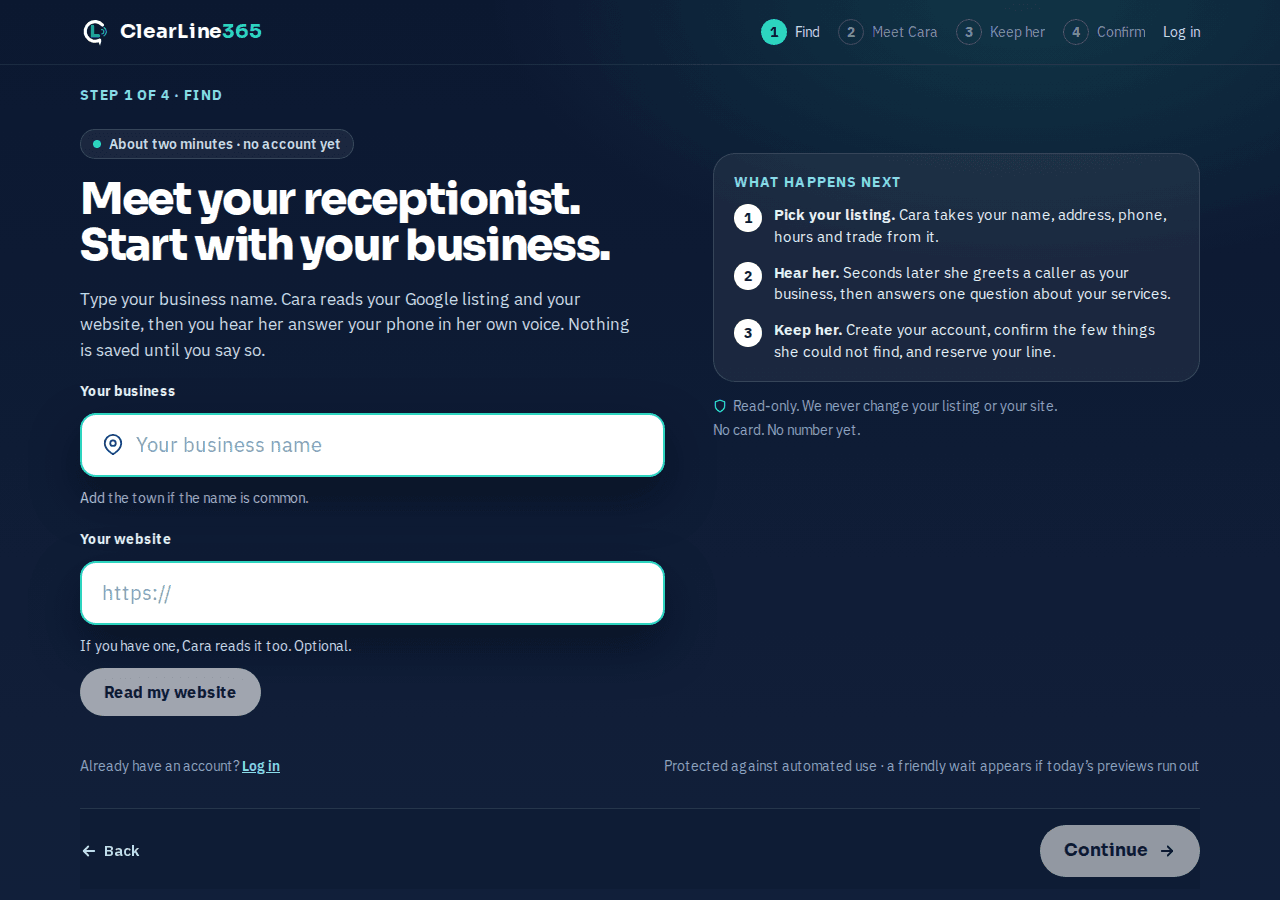
Type your business name — add the town if the name is common — and pick your listing from the suggestions, or paste your website instead. Continue is available the moment you've picked a listing or typed a site; before that, it tells you what it's waiting for instead of doing nothing.
Step 2: Meet Cara
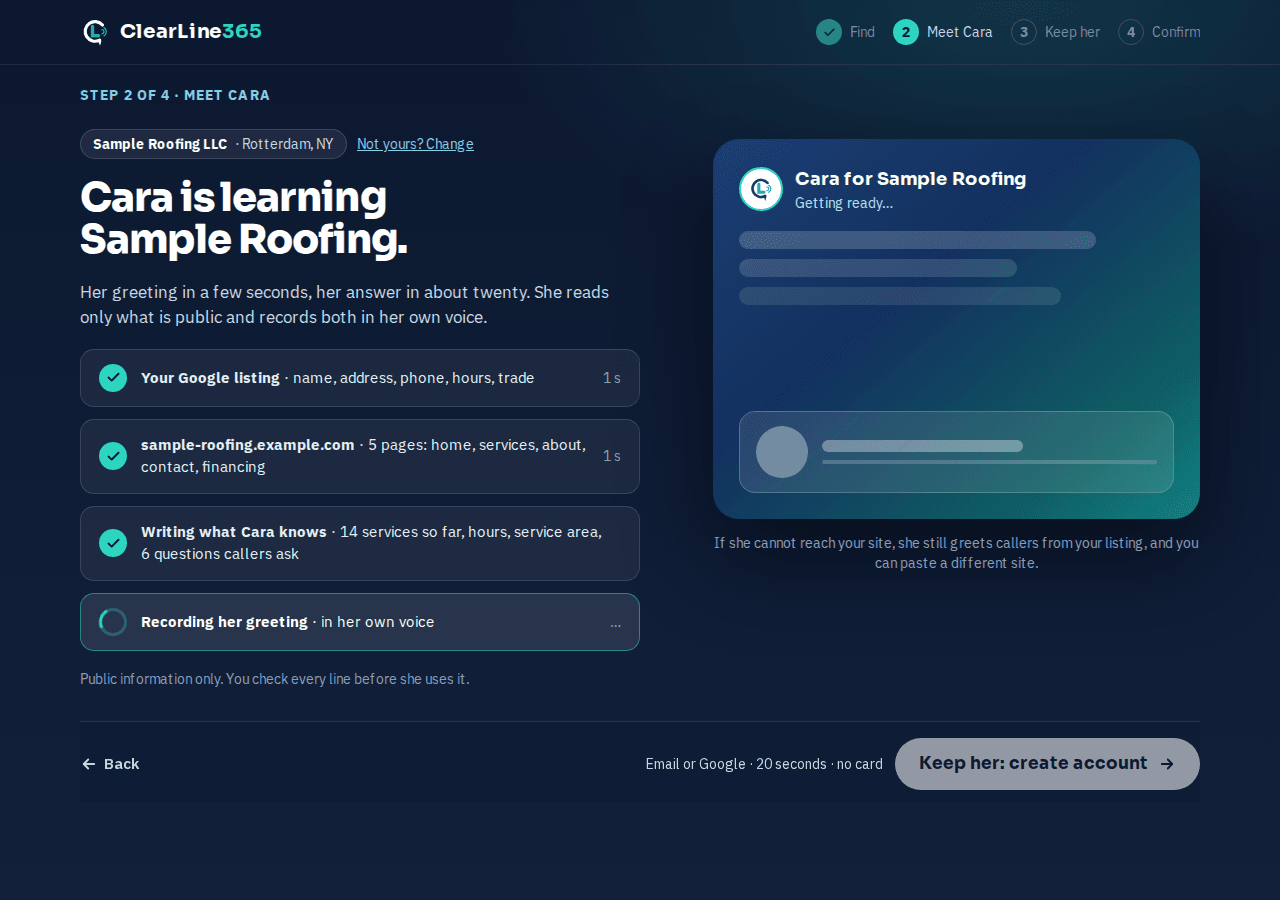
While Cara reads your listing and your website, her greeting renders first — often before the reading finishes — so you hear her sooner. If she can't find a name to say, she asks you to confirm one before she records anything. Once both clips are ready, every fact she found sits beside them with where it came from, and Continue moves on to Keep her.
Step 3: Keep her — create your account
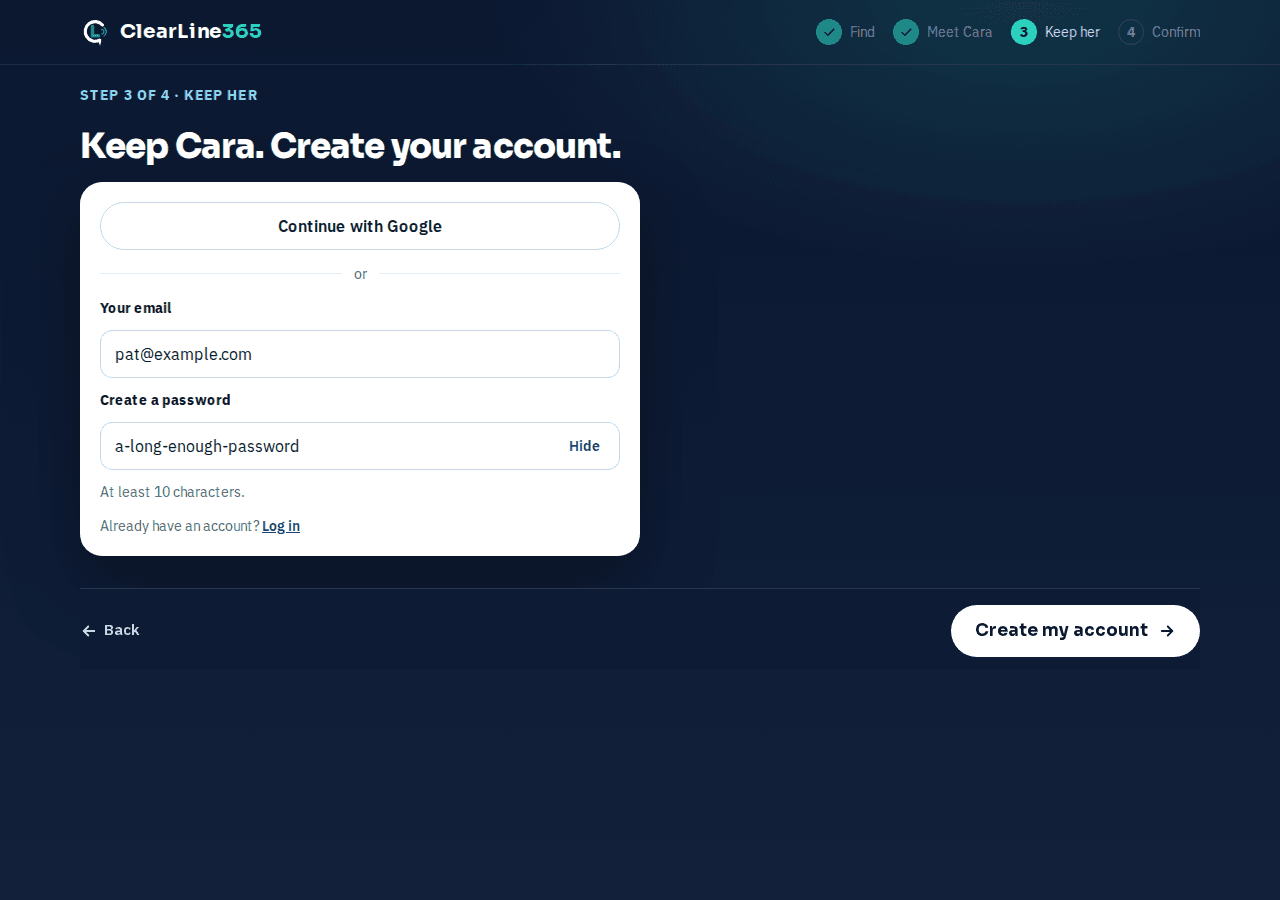
Continue with Google, or enter an email and a password. With email and password, a 6-digit code lands in your inbox — type it, or open the link in that email, to confirm it's yours. This is the first step that saves anything: close the tab before this point and everything from Find and Meet is gone.
Step 4: Confirm — three cards
Three short cards, one at a time, each its own step with its own Back and Continue.
Your details
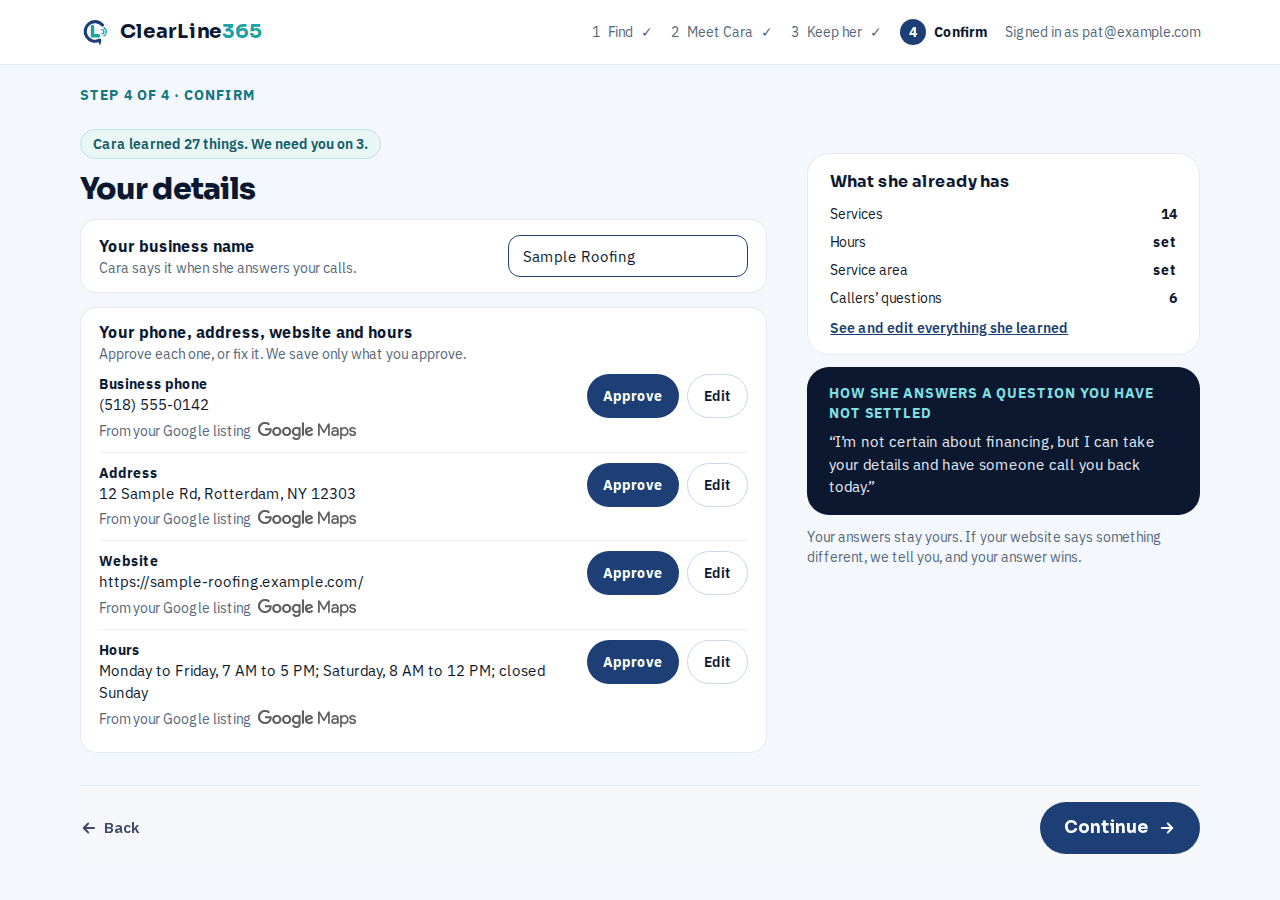
Your business name, plus whatever Cara found on your Google listing — phone, address, website, hours. Approve each one or fix it; nothing is saved until you do. If your listing and your website disagree about your hours, this card asks which one is right.
Four quick questions
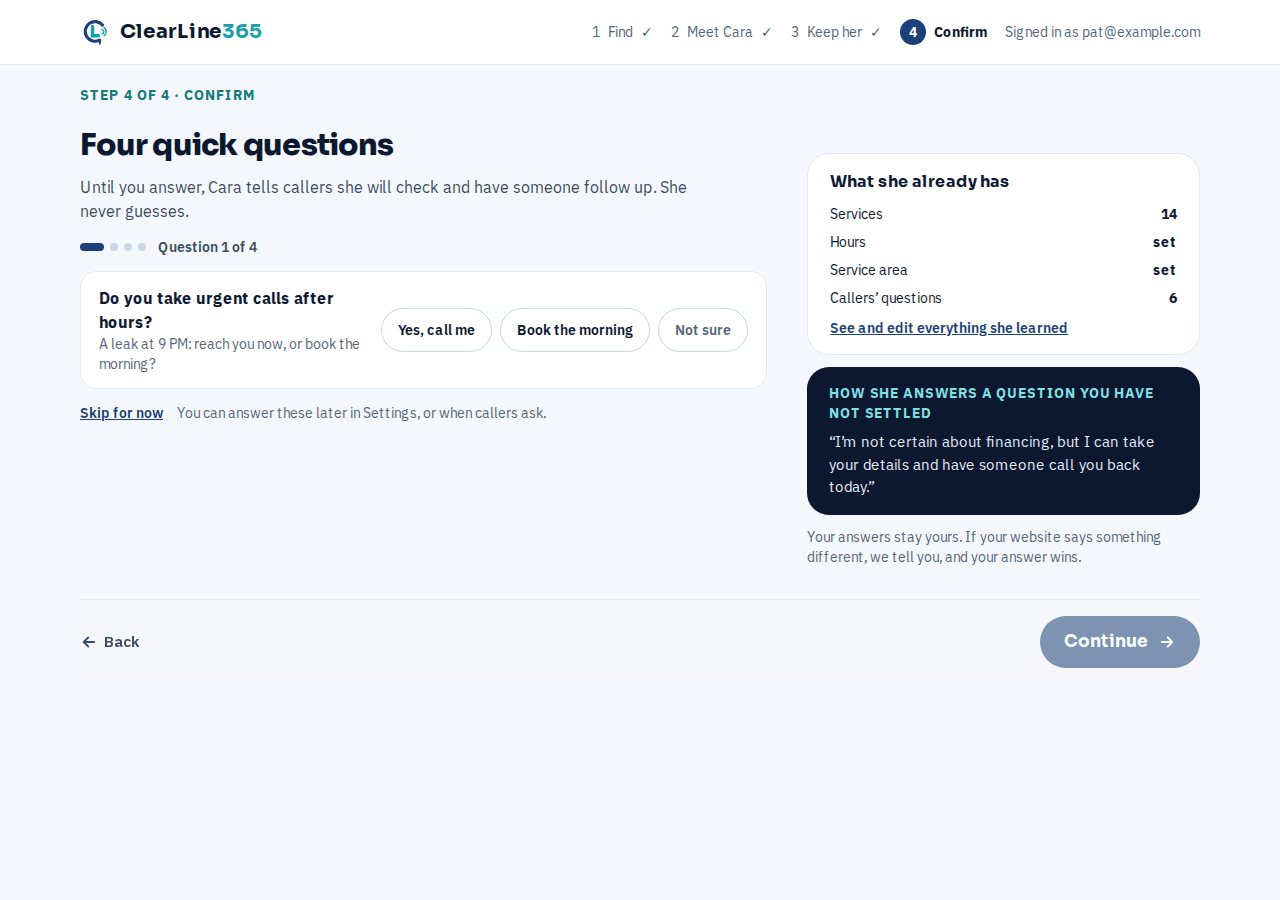
One question per screen: urgent calls after hours, free estimates, financing, and commercial work. Not sure is always a fine answer. Skip for now leaves all four unanswered — you can answer them later in Settings, or when a caller asks.
Where new leads go
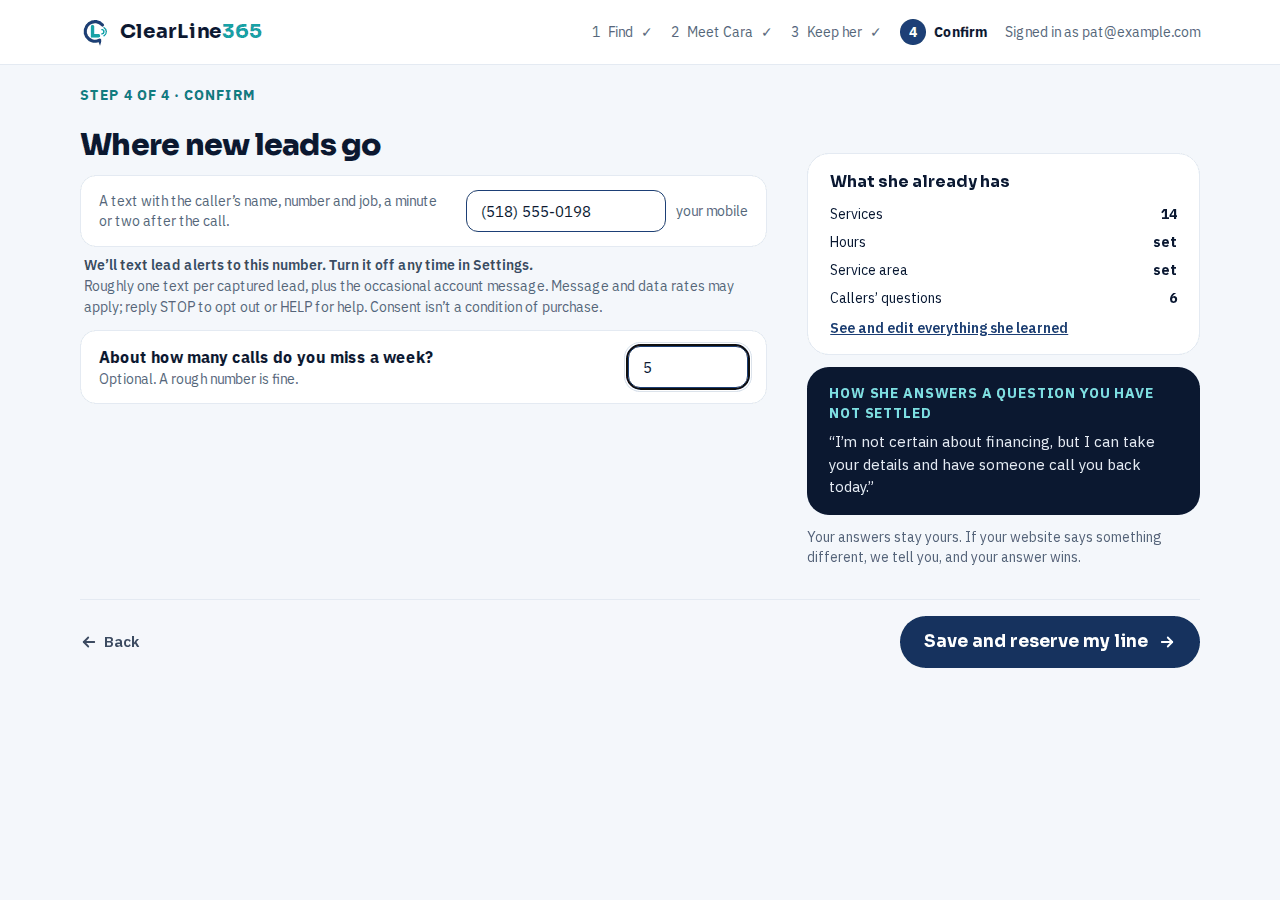
The mobile number new leads should text to, and, if you want, about how many calls you miss a week. Continue here creates your business and starts your line.
What to expect
Saving the last card takes you straight to your line. If ClearLine365 is opening lines by invitation, you land on a card that says where you are in line — no number yet, no charge, and nothing reaches Cara until your line opens. If lines are open, your number starts right away and the same page shows it, updating itself the moment it's ready, with a call button, a test call, and forwarding. A "Back to your details" link on that page goes to Settings › Business, not back through these four steps.
Limits
Nothing is saved until Keep her. Find and Meet are read-only: Cara never changes your Google listing or your website. Reload or use the browser's Back button at any point and you land back where you left off — nothing typed is lost while the tab stays open.
Common questions
What if I go back to Find after Meet has started?
Your picked business stays picked — Continue returns straight to Meet with nothing re-read. Picking a different business ends that preview and starts a fresh one.
Can I stop partway through?
Yes. Before Keep her, closing the tab loses your progress — start again from Find. After you create your account, sign back in and you pick up on Confirm.